Collaboration & Sharing
TreeTracker allows collaboration and sharing within the platform. Shapes and information shared is completely customizable allowing users to decide if the shared user can edit or view only each individual shape and/or data field.
Sharing a Project
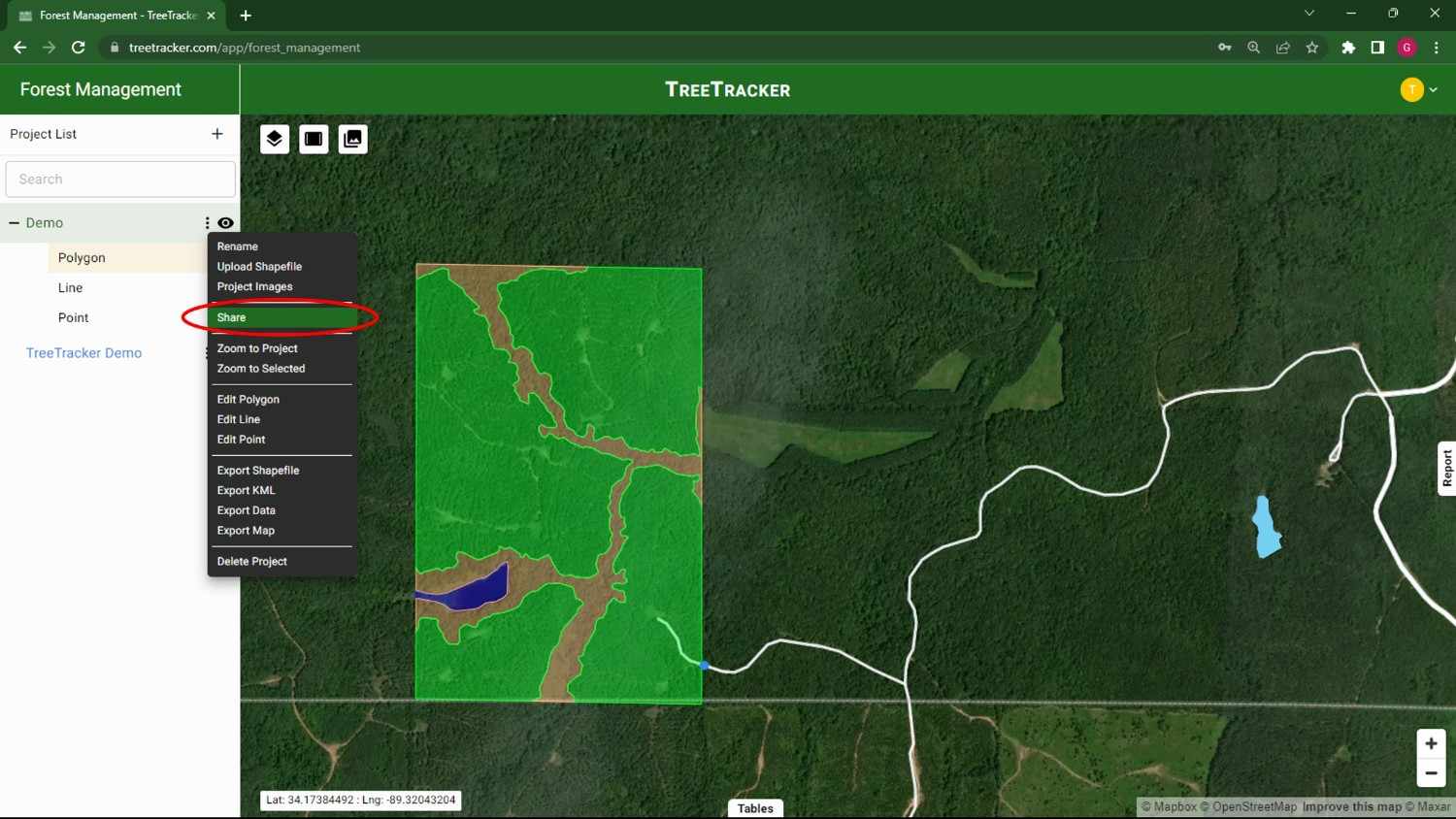
Click the vertical ellipsis next to the project in the project list and select Share from the menu to open the Share pane.
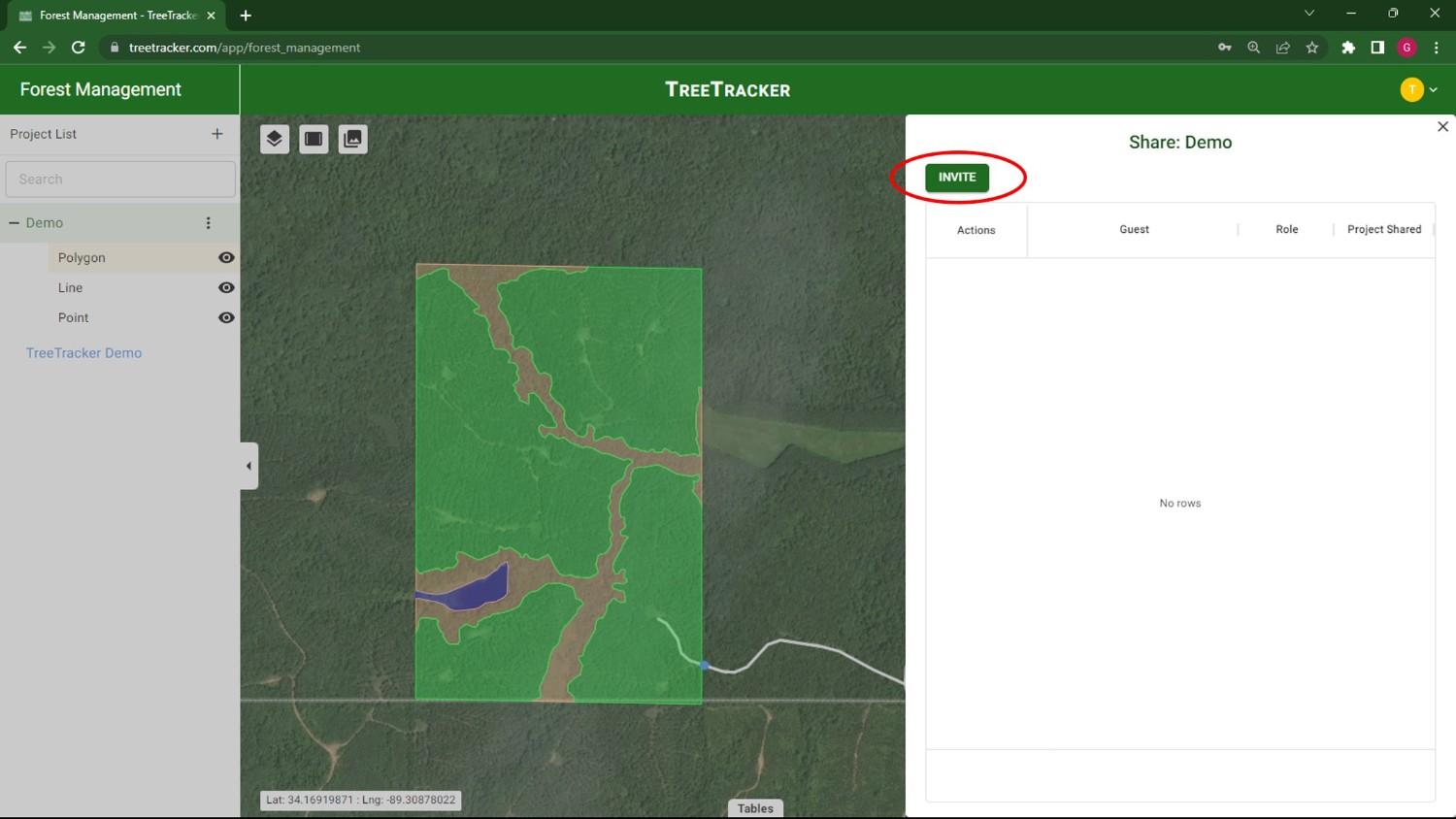
Click the Invite button
Enter the invitee’s email address and desired role.
After selecting the desired role, click Invite
Edit Sharing
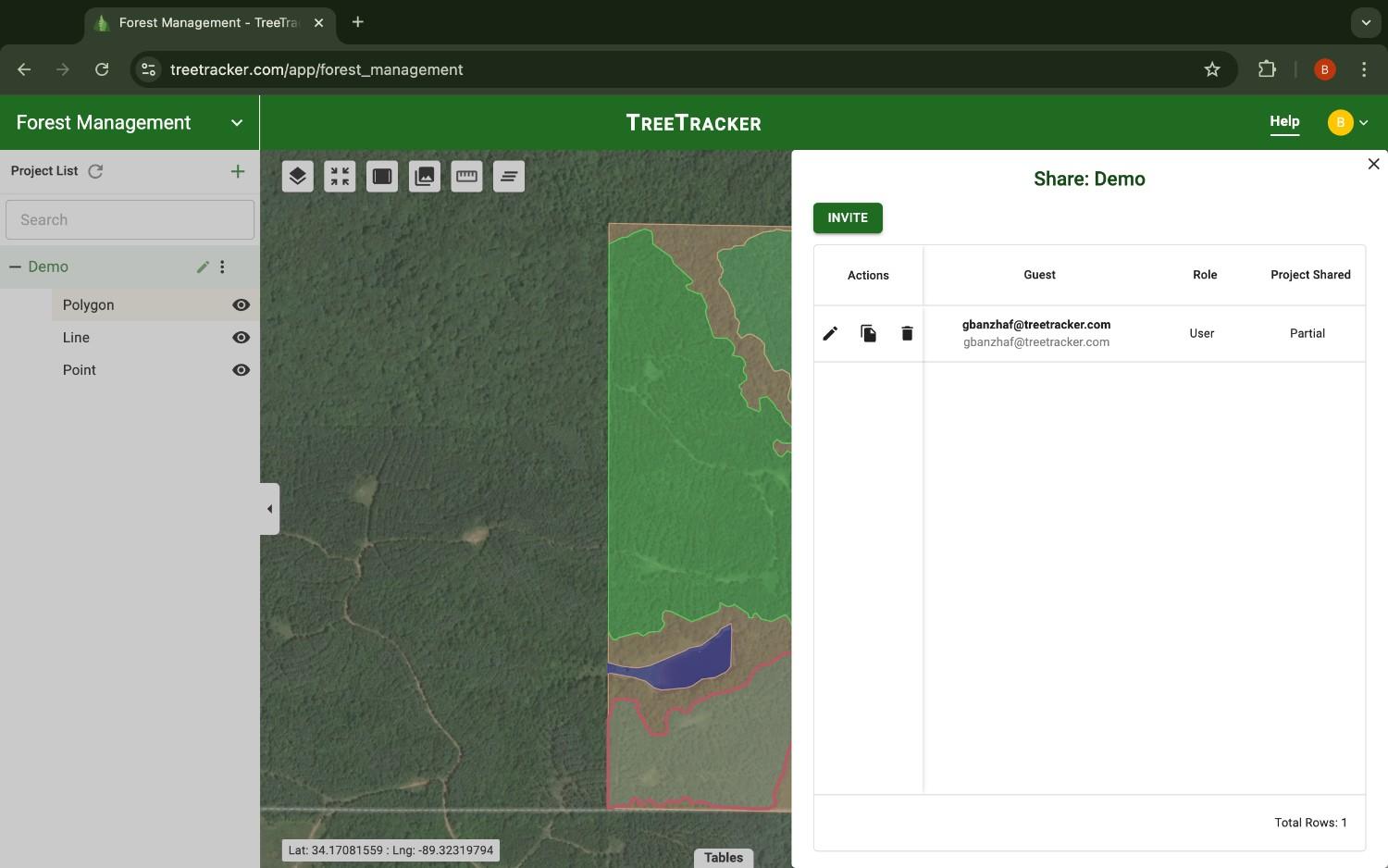
Invited users appear in the Share pane.
Columns will display users’ names, roles, and level of sharing.
The icons in the Actions column can be used to edit user details and access levels , copy to a new user , or to remove users .
After a project has been shared, invited users can view the project in their Project List.
Permissions to change shapes and/or data will be restricted depending on the level of access previously assigned.
Changes made to the project are shared automatically with all other users in the project.