
Ownership
TreeTracker also features an Ownership Layer which allows users to view ownership details for properties on the map. This is a paid add on feature.
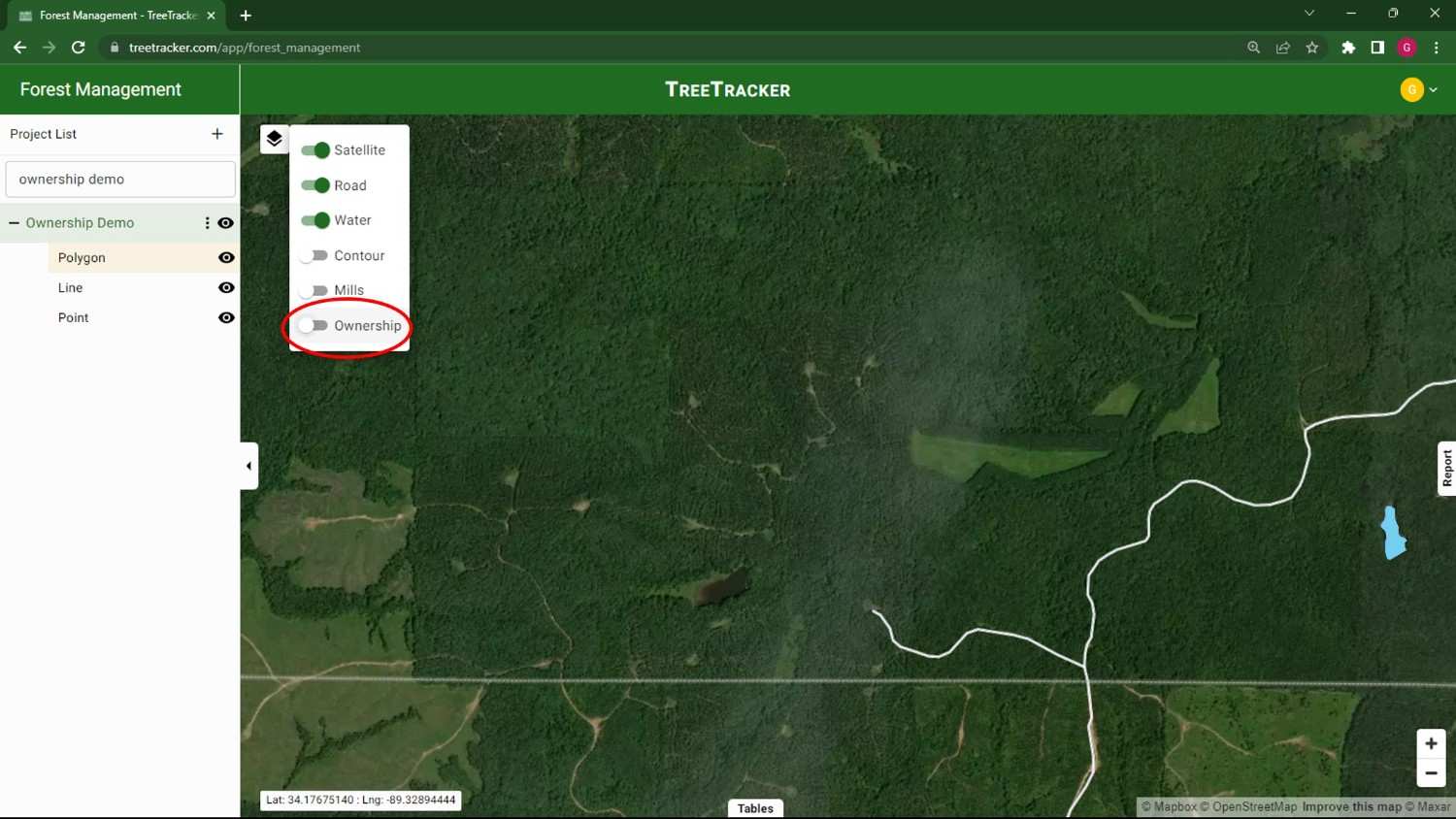
Click the Map Layers Icon and enable the Ownership layer.
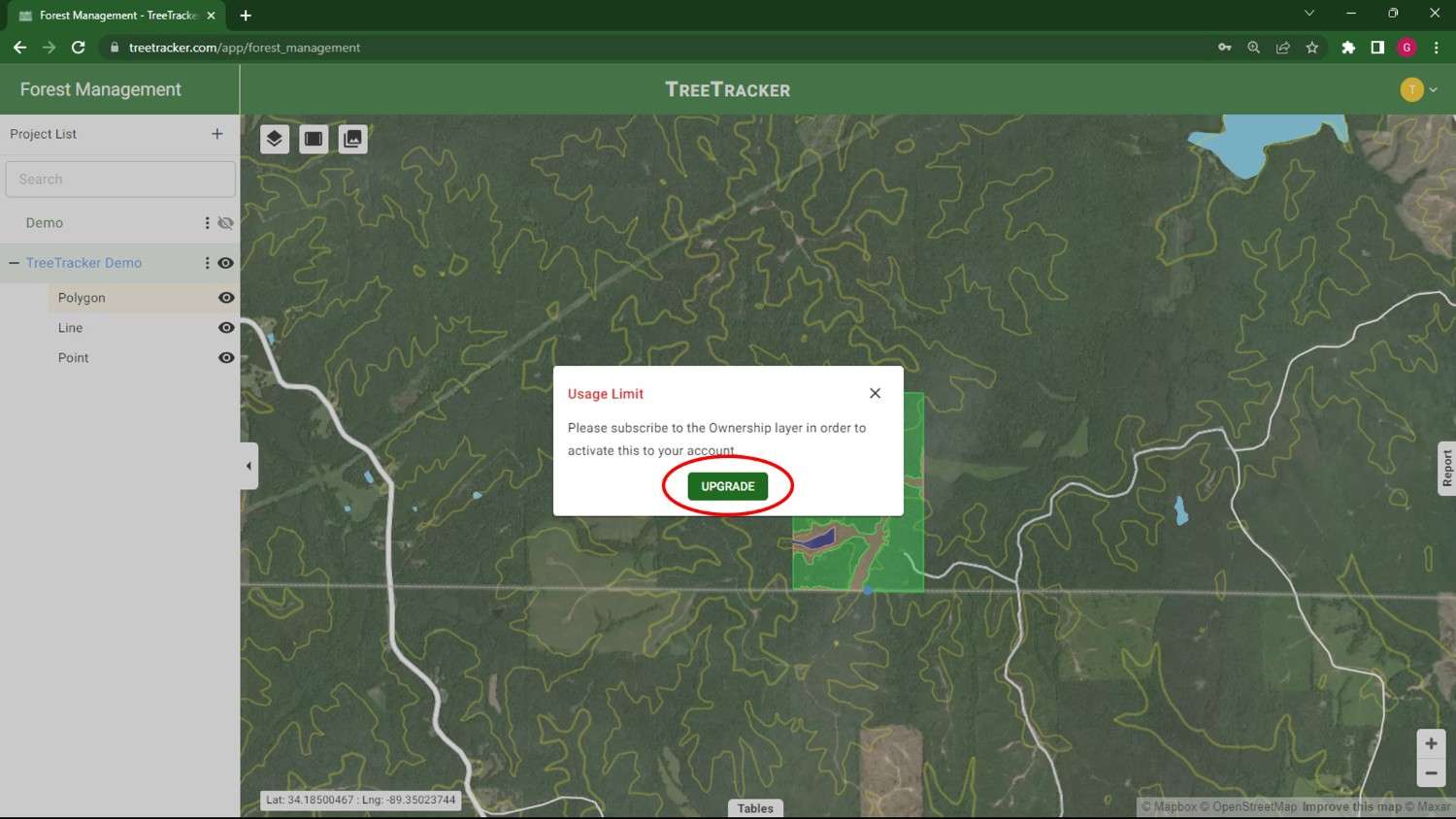
If you have not activated this feature, you will be promoted to upgrade.
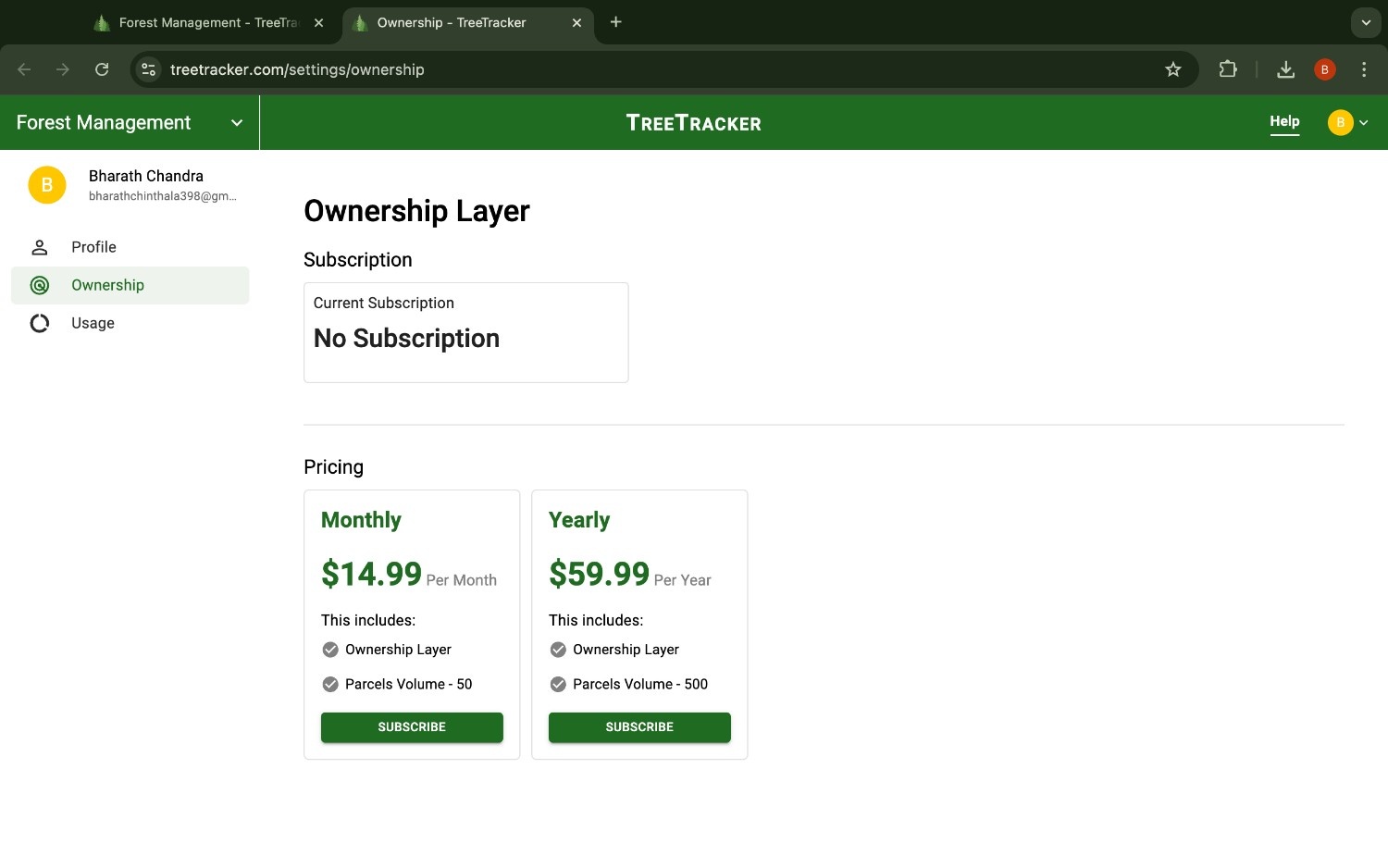
Clicking thebutton will take you to the Ownership section of your Profile page. There you can select your purchase options.
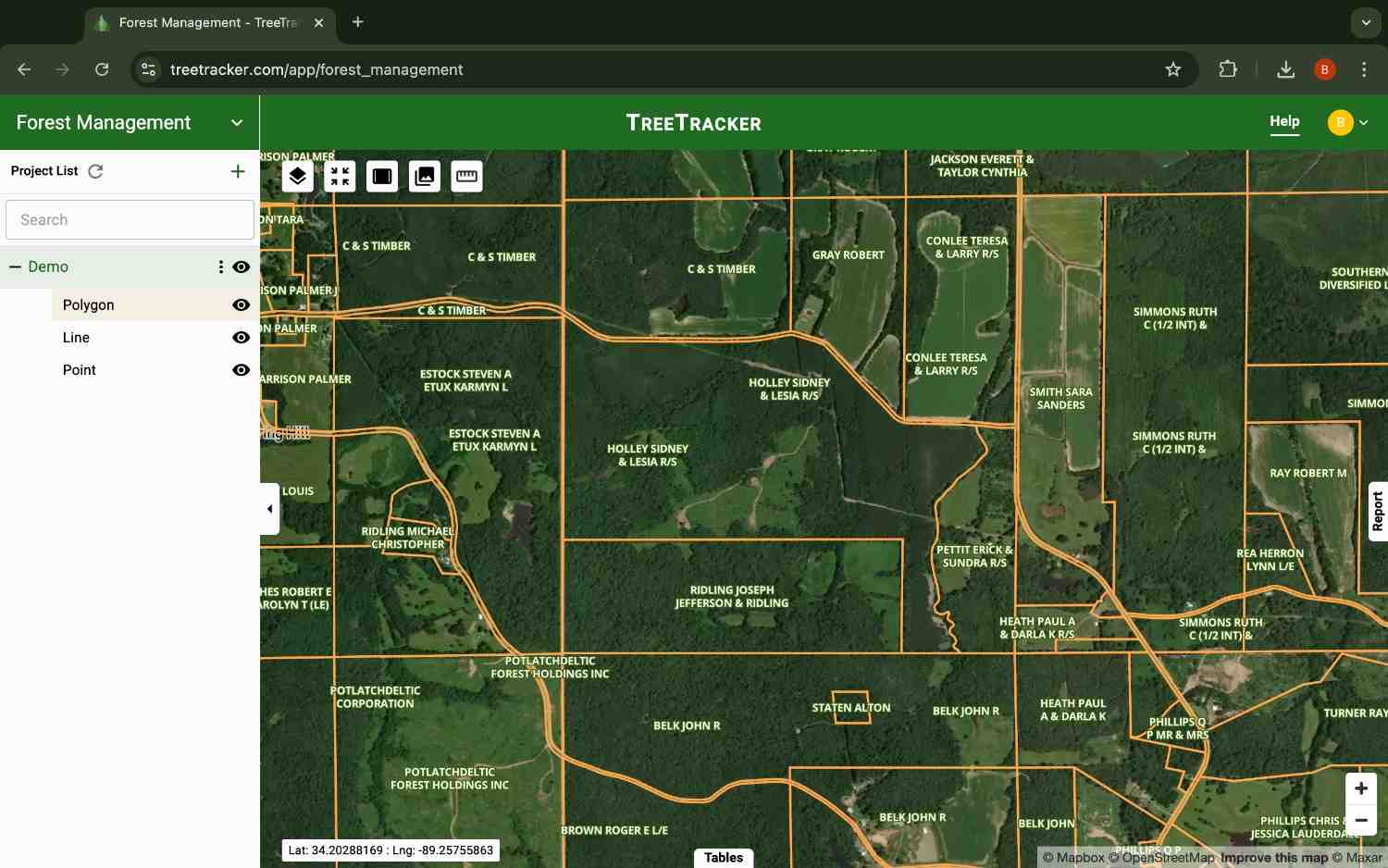
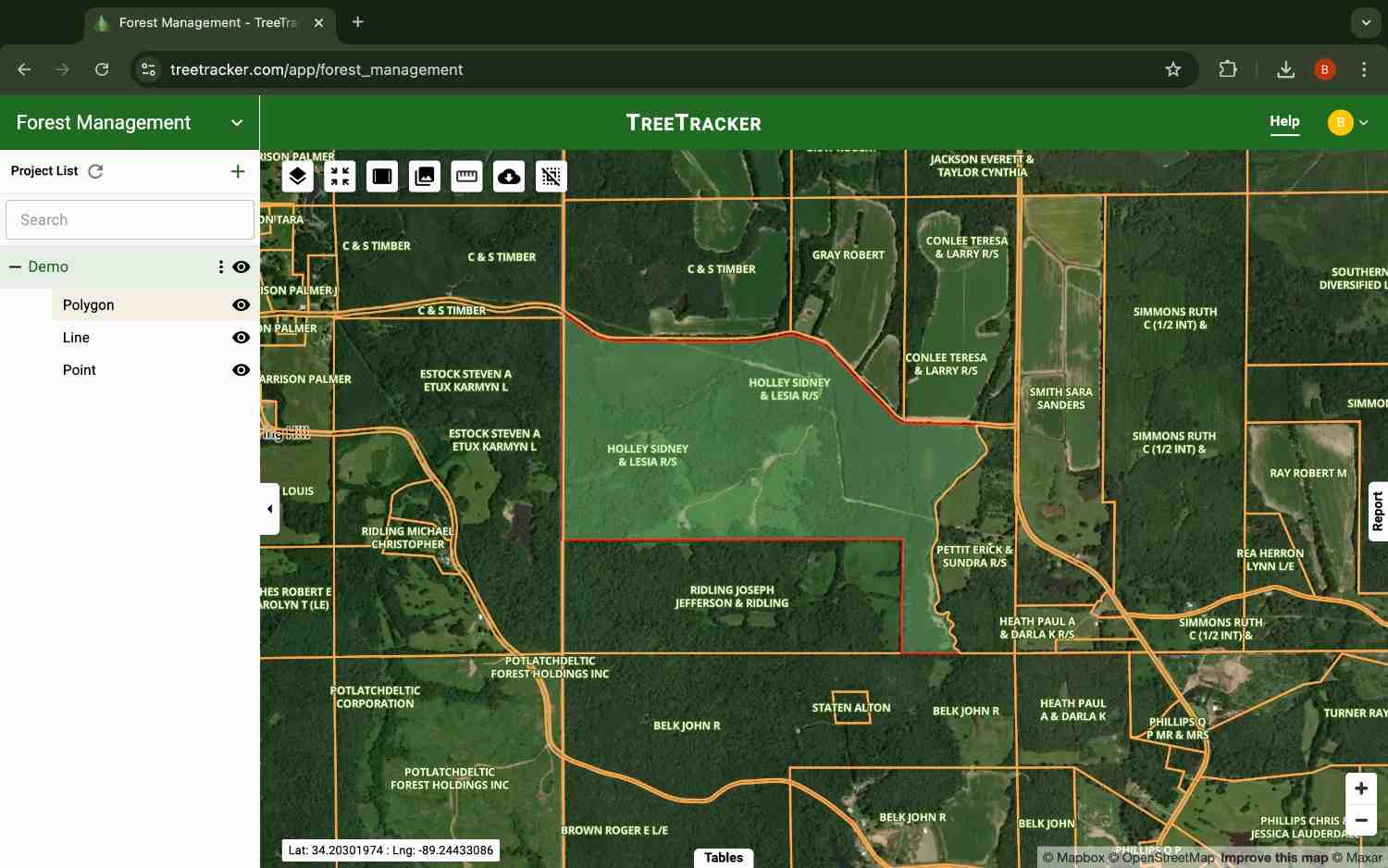
After zooming in on the map, property lines will be displayed as well as owner names.
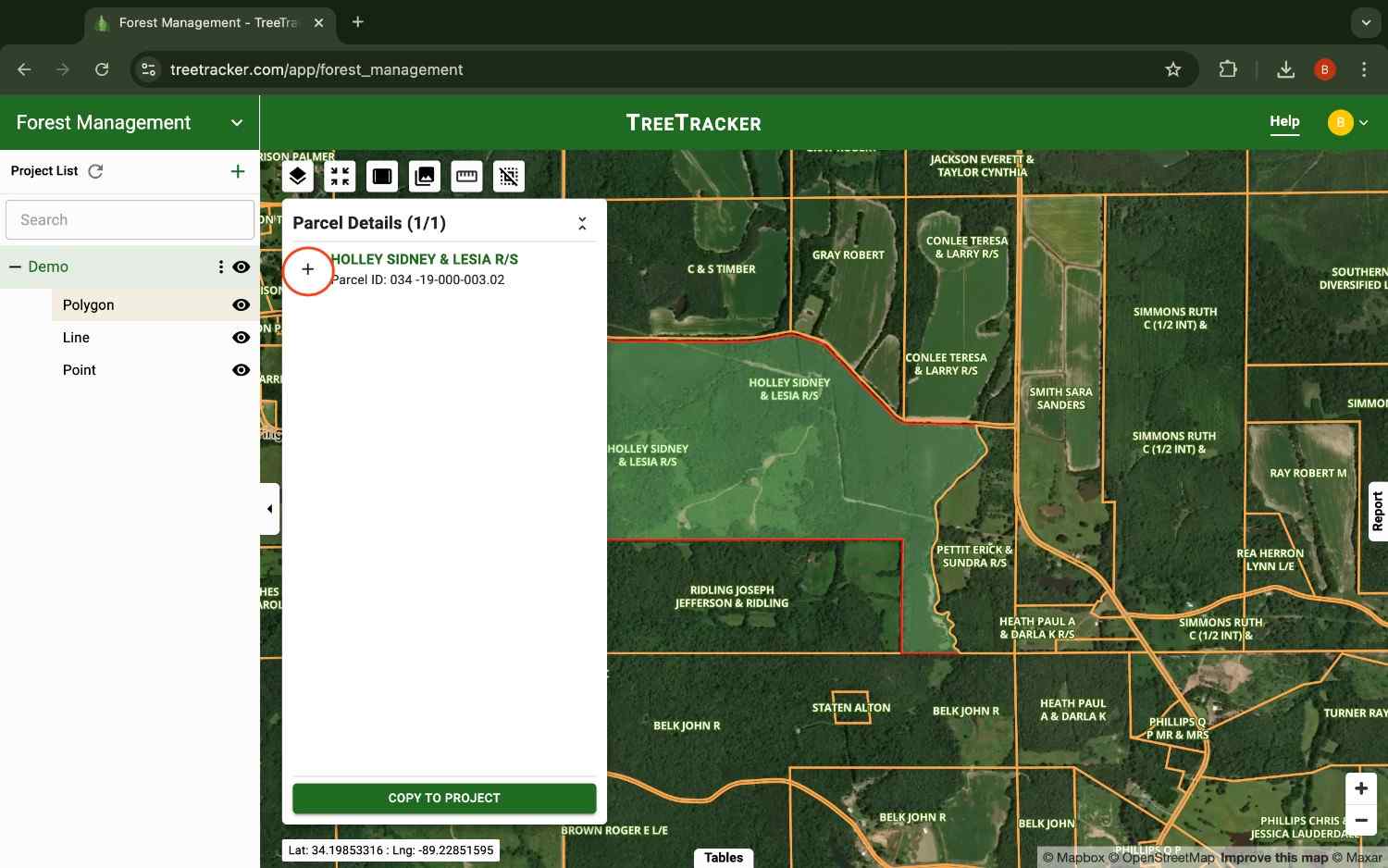
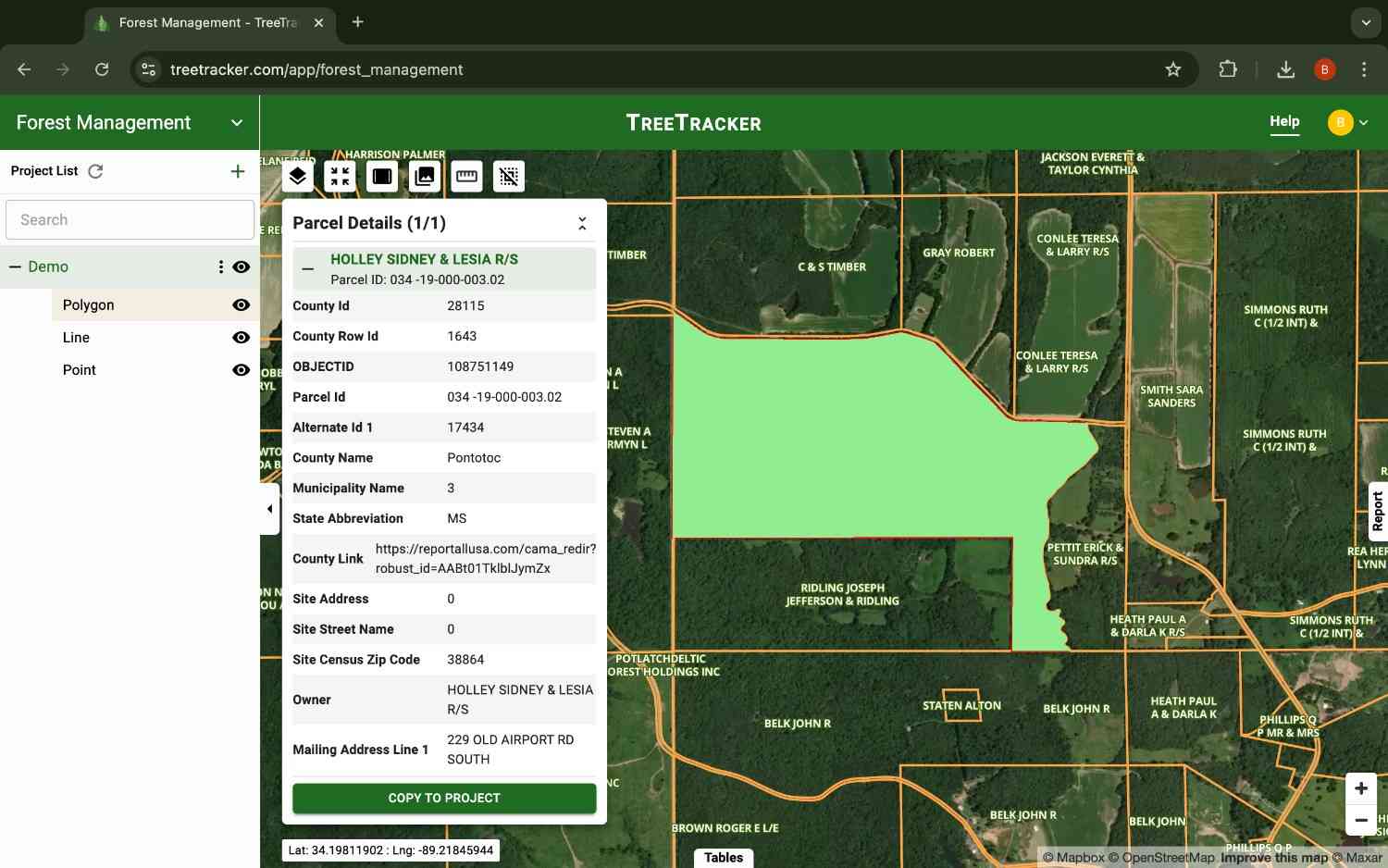
Click on a parcel to select it, then click the cloud icon in the top left corner of the map to view additional owner details.
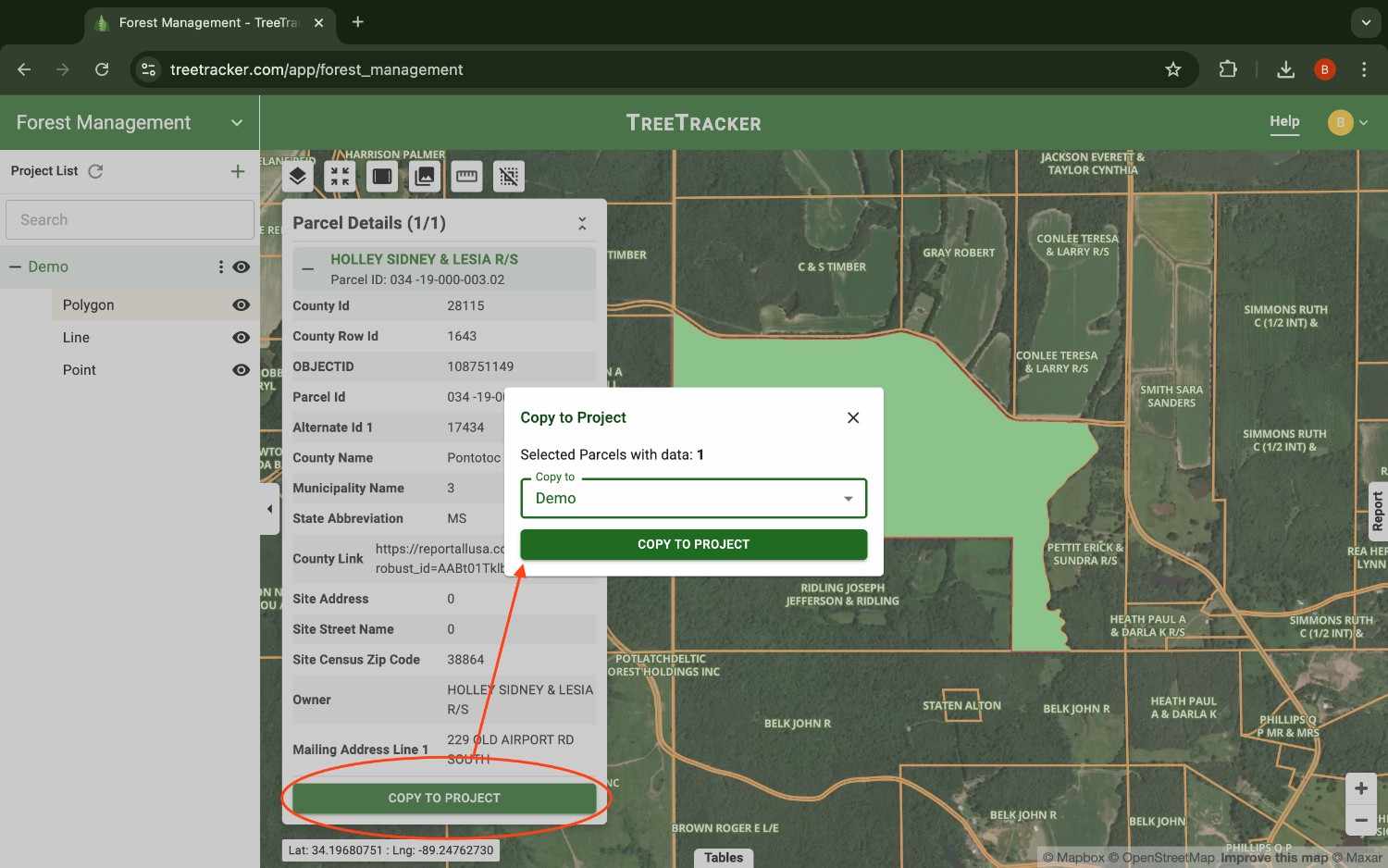
Click the Copy to Project button to transfer the property’s shape to the desired project. This process can be repeated as needed to include as many properties as needed to a given project.
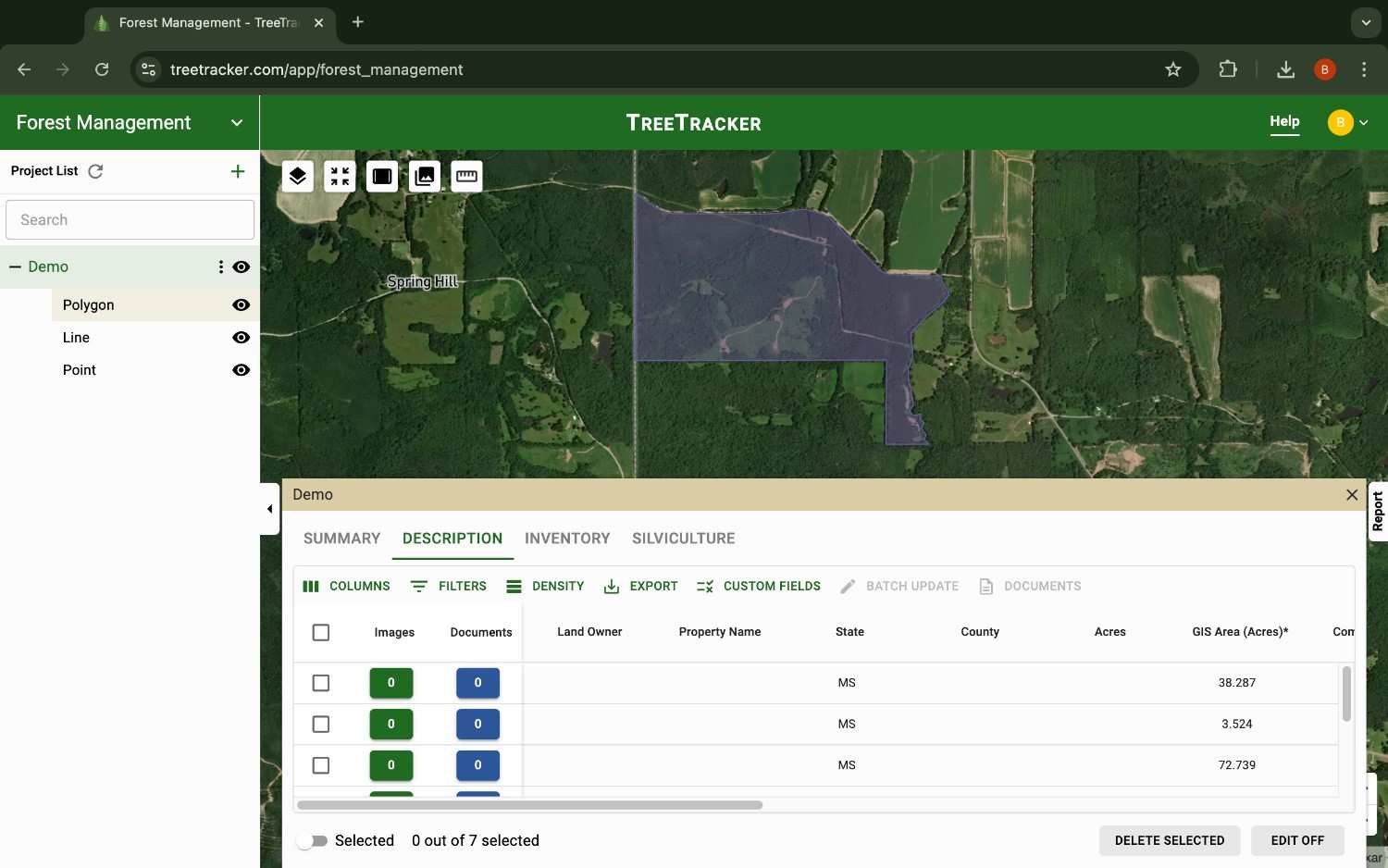
After properties have been added to a project, their shapes can be modified.
Click the vertical ellipses next to the project name in the Project Pane and select Edit Polygon.
Use the steps described in Create/Modify A New Map Shape/Polygon to make changes as needed.